
Resources:
https://www.microsoft.com/en-us/evalcenter/evaluate-windows-10-enterprise
I grabbed an evaluation iso from Microsoft’s eval center and installed it on a new VM, similar to how I setup the server.
While doing this, I remembered how painful the windows 10 install is, and how many times I had to say no, no, no, no, no, no just to install the OS without having a ton of junk.
I have never setup a VM using only a host only connection, so this is a new experience for me. Once I finish installing the OS, I will need to test if I can ping between the server and client. Then I will join it to the domain and setup AD accounts (Hey I already know how to do that stuff!)
I was able to install the OS successfully, but it doesn’t look like VirtualBox is giving out an IP automatically. I will manually set it and see if it works.

After setting that up I was able to ping my server!
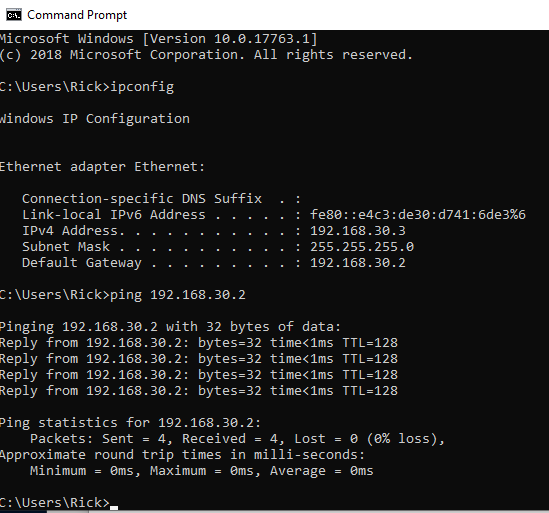
Now let’s join this client to the domain…
- Open up system info (Control Panel > System and Security > System
- Click change settings Next to the computer name
- Click Change…

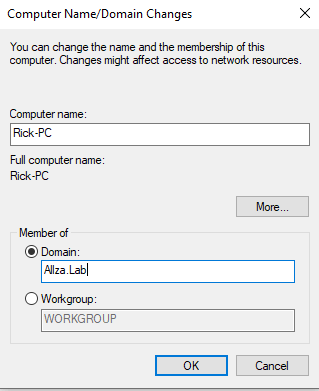
- Enter Allza.lab for the domain (I already changed the computer name)
- Enter credentials of a user.
- Since I didn’t create any users yet, I will just use the administrator account
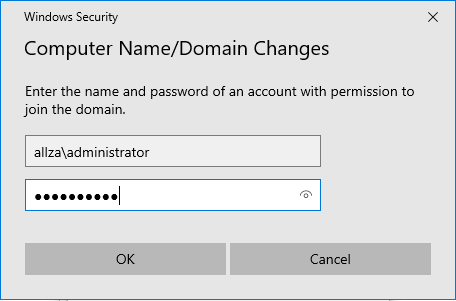
- Since I didn’t create any users yet, I will just use the administrator account
- The client was successfully joined to the domain, now we just need to restart.

After the restart, it looks like the machine is joined to the domain successfully.

We can verify this by looking at the computers OU on the server as well

Now the next step will be setting up an OU structure and creating a user account for Mr. Rick.
 Killian Sherer