
Resources:
Windows Server 2012 Evaluation
Download a server iso – for this I used Windows Server 2012. I am purposely not using 2016 because I want to simulate an older environment.
I grabbed an evaluation copy from Microsoft’s Eval Center.
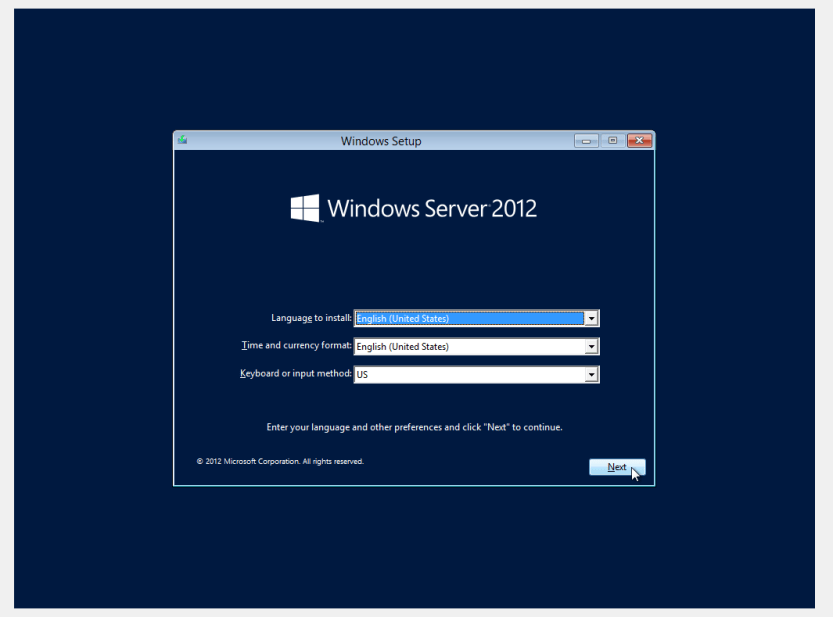
As soon as that was finished downloading, I created a new VM using VirtualBox and started the setup
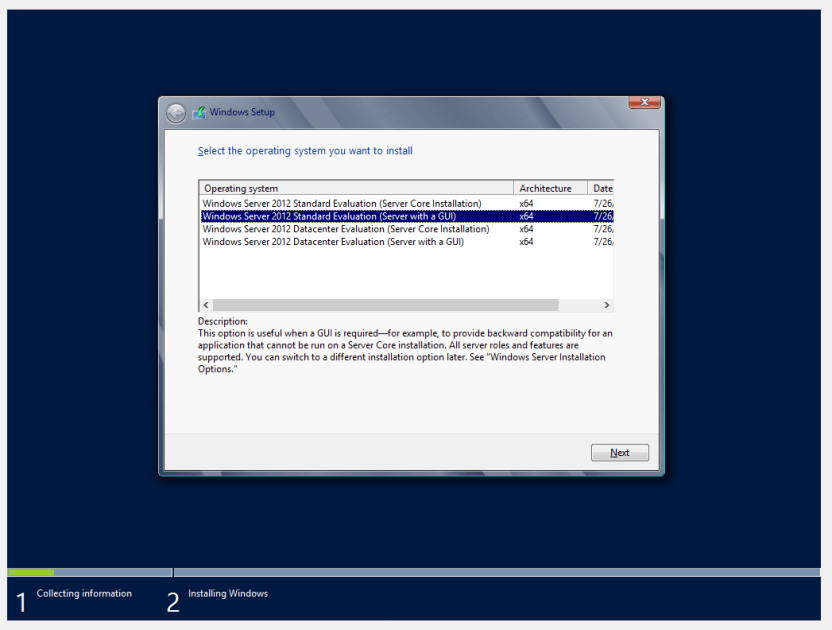
I’m one of those GUI guys… I could go without it but I want to be able to poke around a bit since I am no expert.
One that is finished, I setup the network adapter to the host only adapter since I do not want this machine (or any in my lab environment) to talk to the outside world. Firewall rules should prevent it, but why take the chance?

Now that that is setup, I am going to install Win 10 Enterprise onto another VM.
Back to the server
Log in using [Host Key]+Del
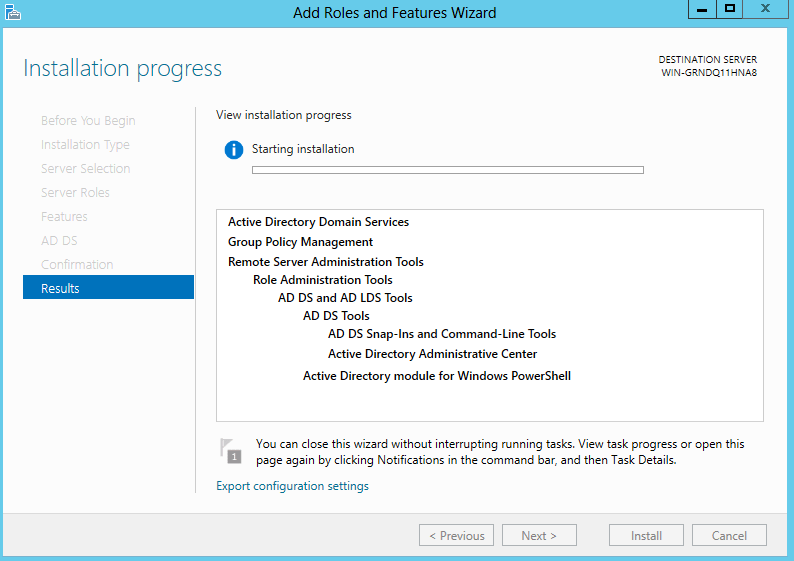
The first thing I will need is AD DS or Active Directory Domain Services.
- Add Roles and Features
- Next
- Role Based > Next > Next
- Check AD DS > Add Features > Next

- In the features list, make sure Group Policy Management is Checked
- Next > Next > Check Restart Automatically > Install
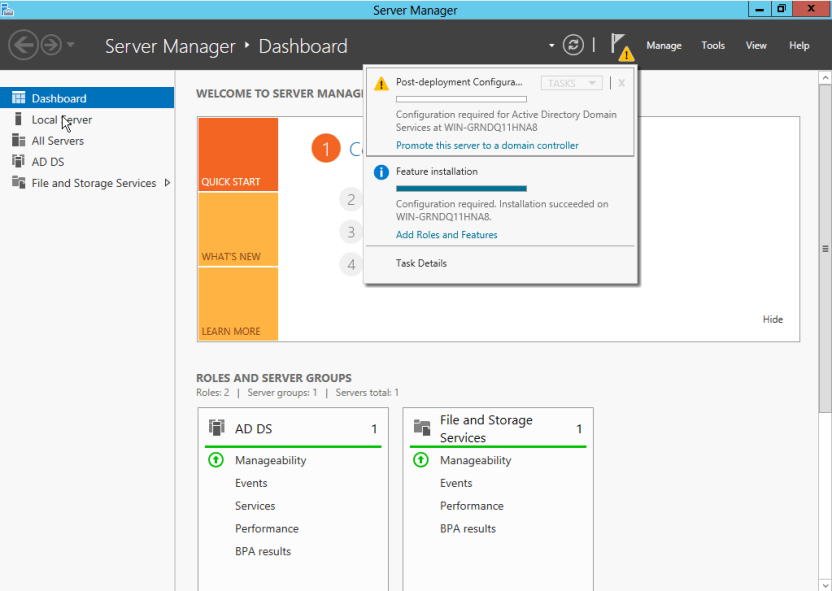
Now that that is finished, I need to setup this machine as a DC.
In server Manager, click the flag > promote this server to a domain controller.
Since I do not already have a domain setup, I will create one.
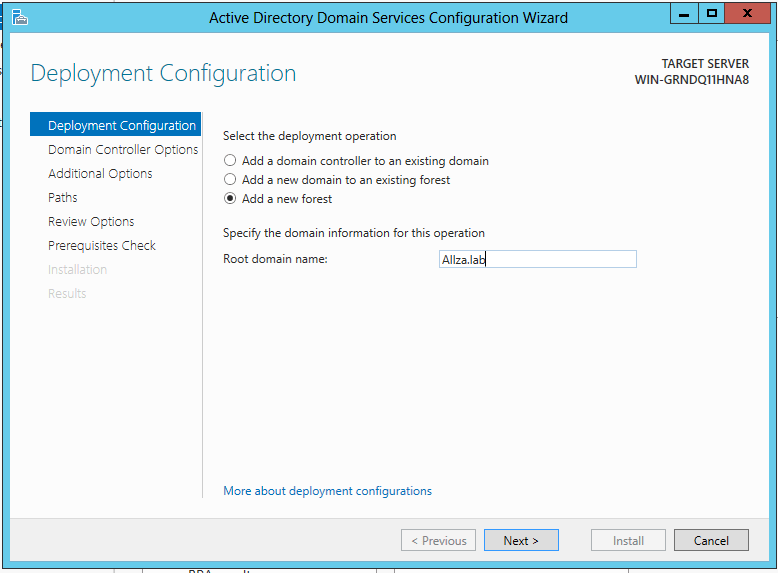
Setup a new DNS server
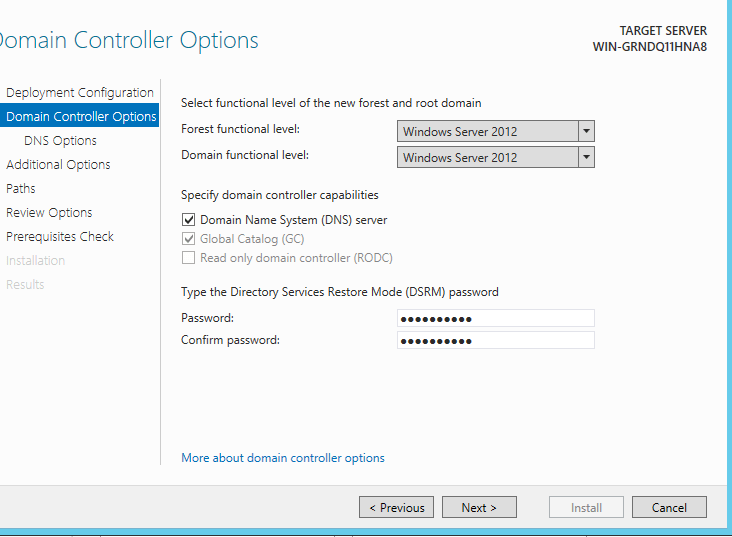
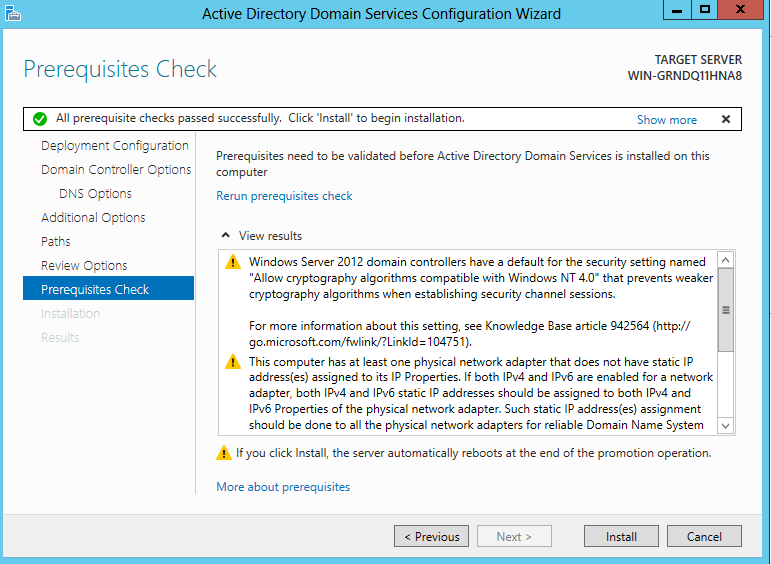
This error looks like it is normal – the microsoft site shows the same thing

My hostname is now set to ALLZA so we are all good here!

I will leave the default folder locations.
Now I will start the installation of AD DS
After restarting it looks like I am getting a domain\ login prompt so that is a good sign!
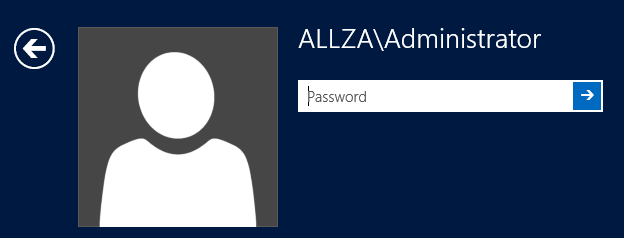
Login successful! Let’s check AD and make sure that it shows up properly.
Side note: I had that I used 2012 and not 2012 R2 – it has the charm window instead of the start menu… I am going to fix that with classic shell.
Things look alright with the exception of my hostname being incorrect. This might just take a reboot to fix.

It actually looks like restarting did not change it, so I will update it.
I probably should have updated the name before making the server a DC, but that is okay. It looks like there are just a couple more steps to take to make sure everything works as it should after updating the name.
- Update DC Name
- Reboot
- Check to make sure hostname updated (success)
- Now I need to update the name of the Domain System Volume
- ADUC > System > DFSR-Global Settings > Domain System Volume > Topology
- Right click WIN-blah and click rename

- Rename to hostname (Allza-DC01)

Now we should be good for the basic domain setup!
 Killian Sherer